
Open Port 40120
txAdmin's web panel runs on port 40120. Open it in your server's firewall so you can manage the server from your own computer's browser at:
http://YOUR_SERVER_IP:40120The steps below are for a Windows server (VPS or dedicated).
1. Open the firewall settings
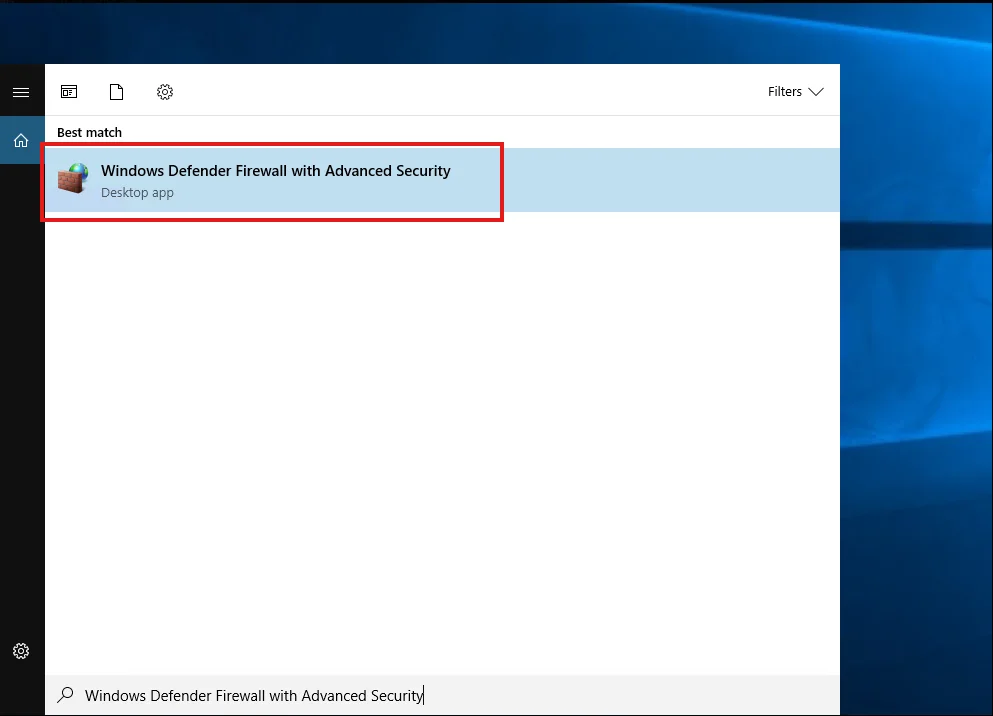
Search the Start menu for Windows Defender Firewall with Advanced Security and open it.
2. Create a new inbound rule
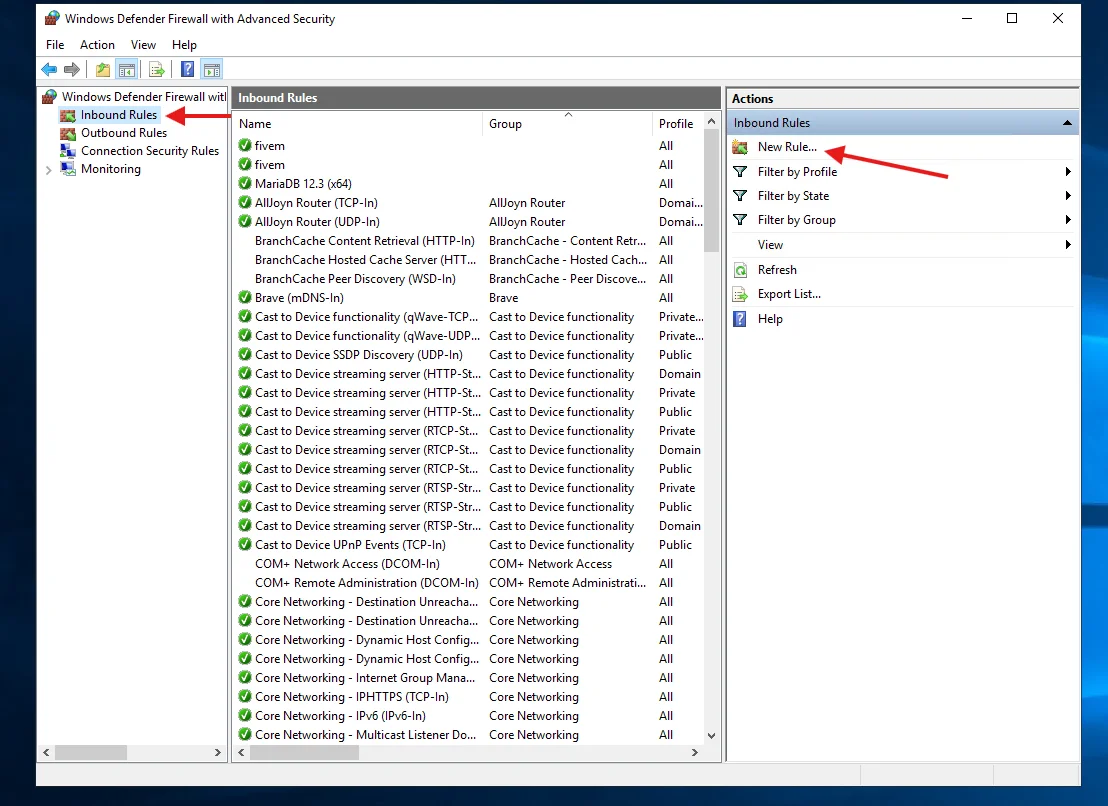
Click Inbound Rules on the left, then New Rule… on the right.
3. Rule type
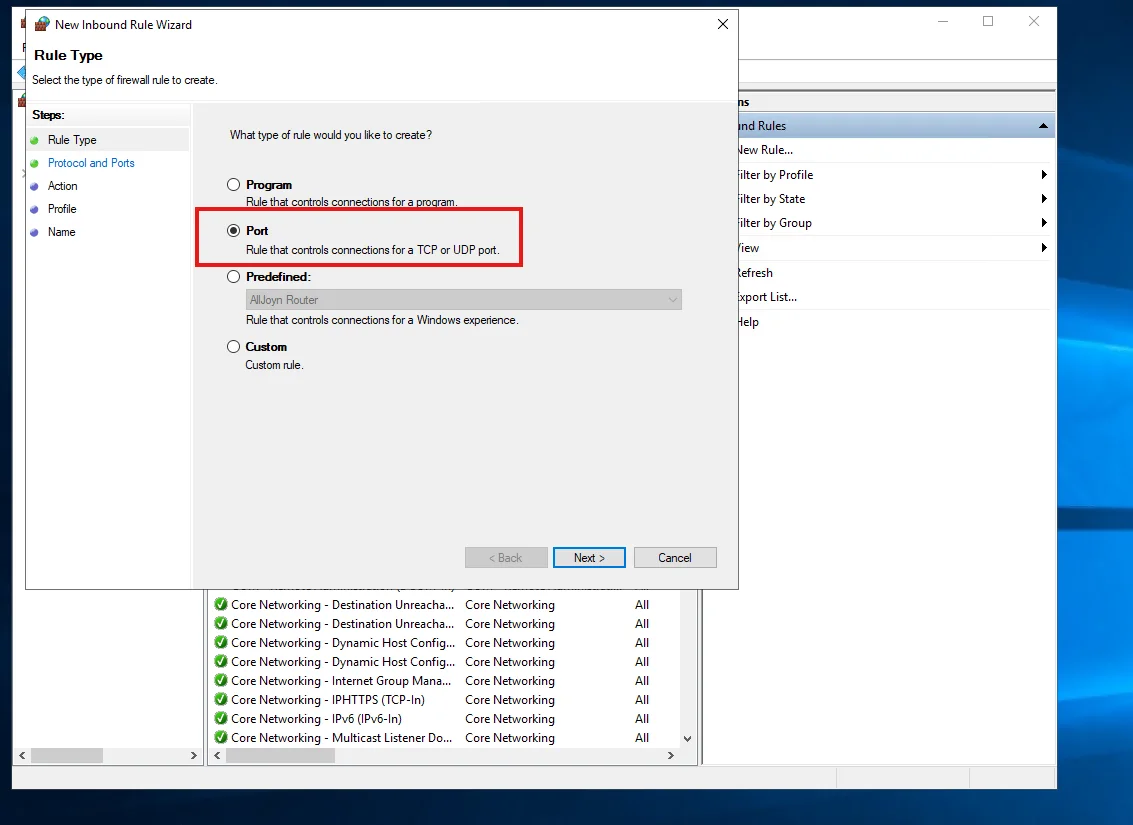
Select Port, then Next.
4. Protocol and port
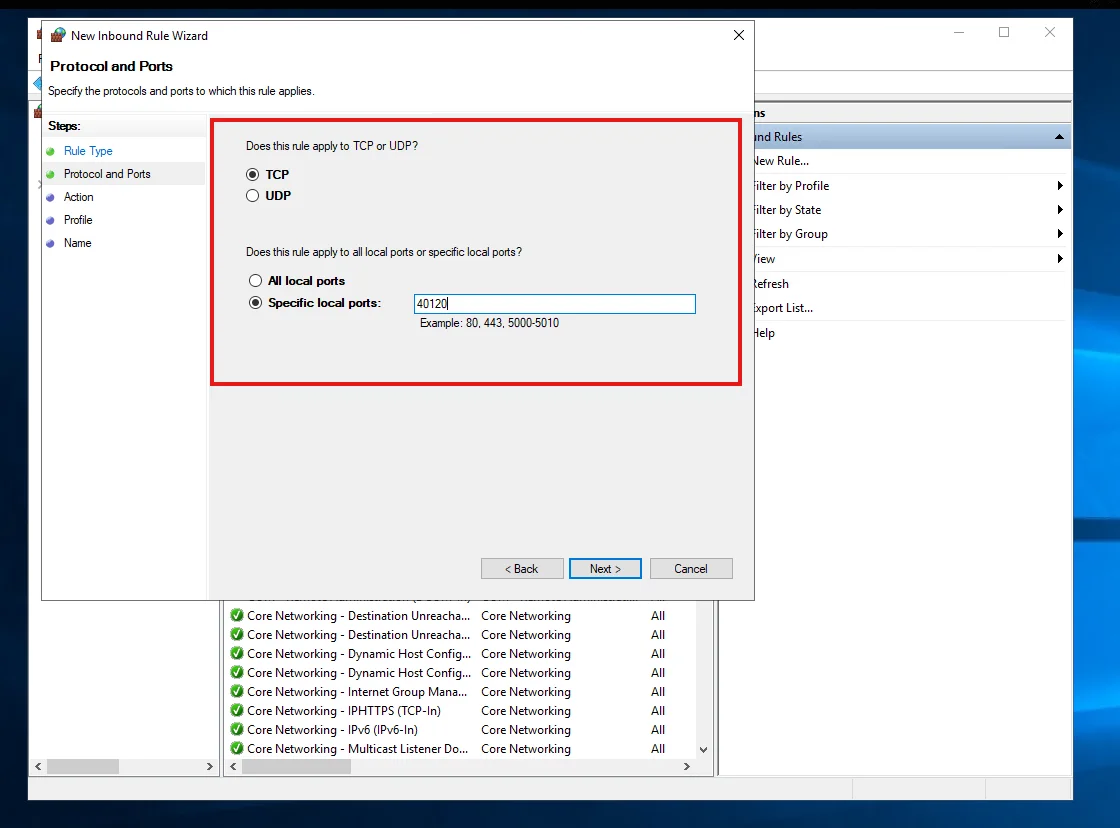
Select TCP, choose Specific local ports and enter 40120. Click Next.
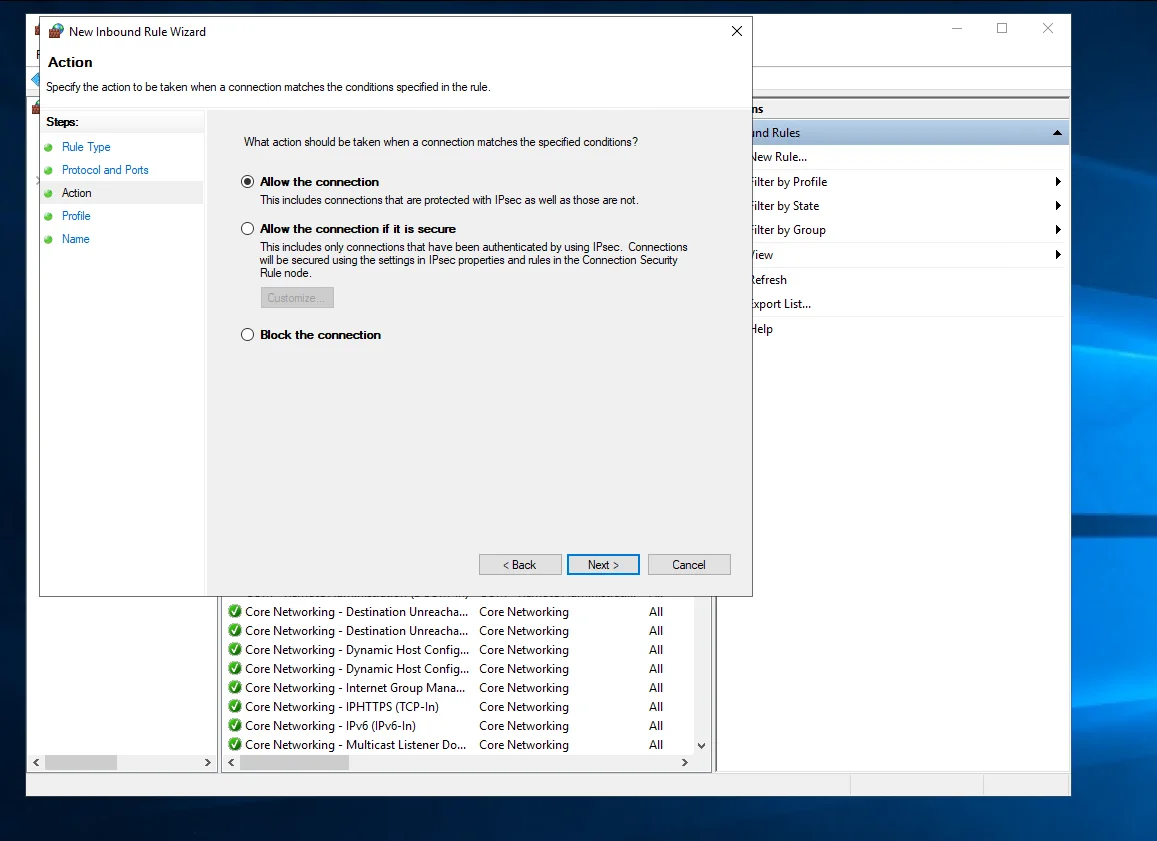
5. Action
Select Allow the connection, then Next.
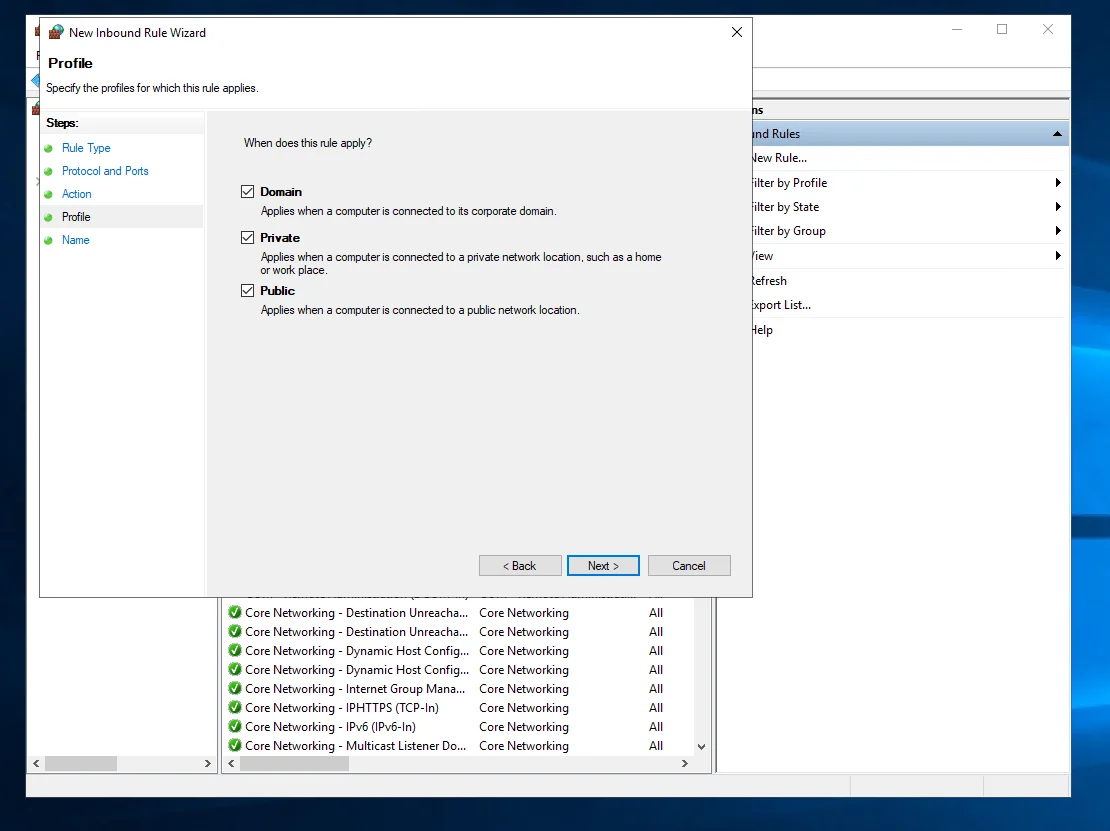
6. Profile
Keep Domain, Private and Public all checked, then Next.
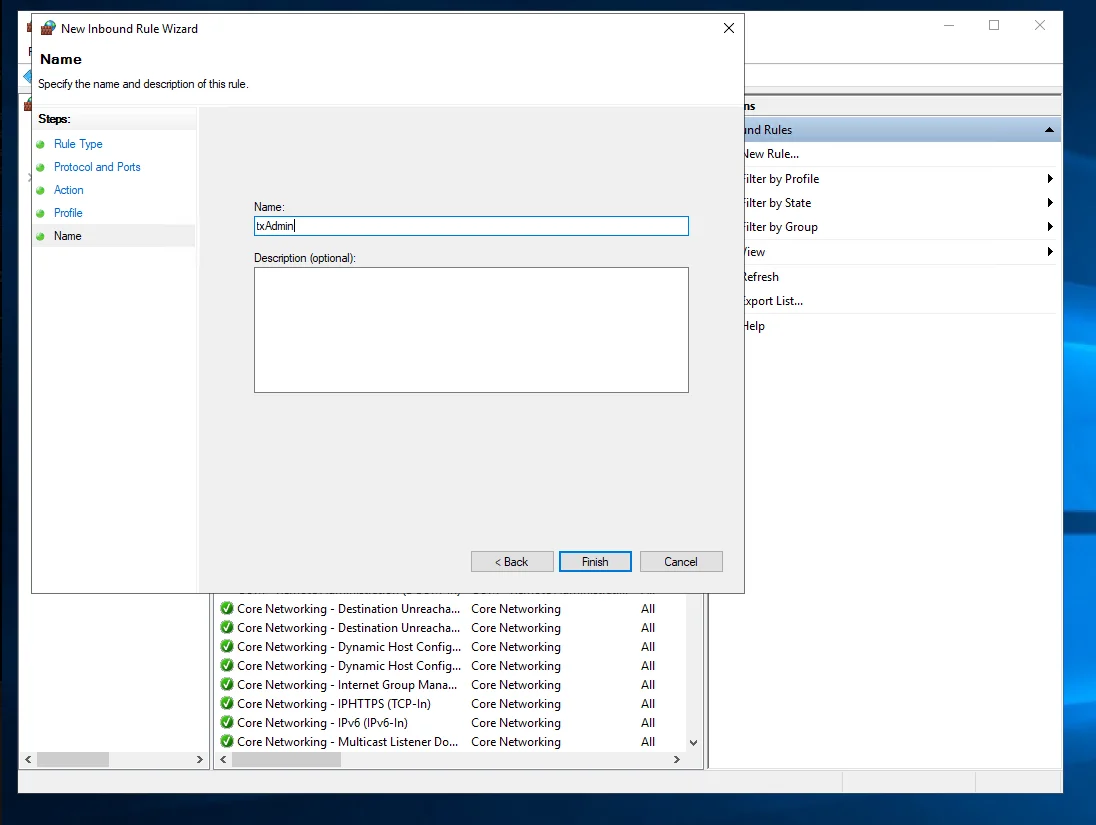
7. Name
Name the rule txAdmin and click Finish.
Test it
From your own computer, open http://YOUR_SERVER_IP:40120 in a browser. The txAdmin login page should load.
Still not loading?
- Some hosting providers have their own firewall in their control panel. Open TCP port
40120there too. - If the server is at home, forward TCP port
40120in your router to the server's local IP.
WARNING
Anyone who knows your IP can reach the login page once the port is open. Use strong passwords, or Discord role logins, and never share your admin accounts.